Thursday, March 13, 2014

Undelete 360 - Data Recovery Software

Today , I'm really in an emergency situation when all < strong style = " background-color : white ; color: # 3d3d3d ; font-family: Halvetica , Arial , sans-serif; are -size: 13px ; line -height: 20.799999237060547px ; text-align : justify "> my blog entries were accidentally deleted . I begin to find in the Internet, < strong style = " background-color : white ; color: # 3d3d3d ; font-family: Halvetica , Arial , sans-serif; font-size: 13px ; line- height: 20.799999237060547px ; text-align : justify "> free software which < strong style =" background-color : white ; color: # 3d3d3d ; font-family: Arial, Halvetica , sans-serif; font-size: 13px ; line -height: 20.799999237060547px ; text-align : justify "> can recover my deleted files or entries < / strong> . Fortunately, I found < strong style = " background-color : white ; color: # 3d3d3d ; font-family: Halvetica , Arial , sans-serif; font-size: 13px ; line -height: 20.799999237060547 px ; text-align : justify "> Undelete 360
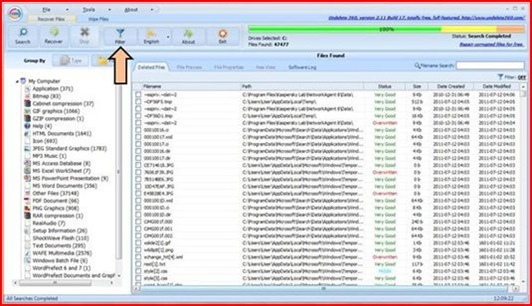
Undelete 360 - Data Recovery Software

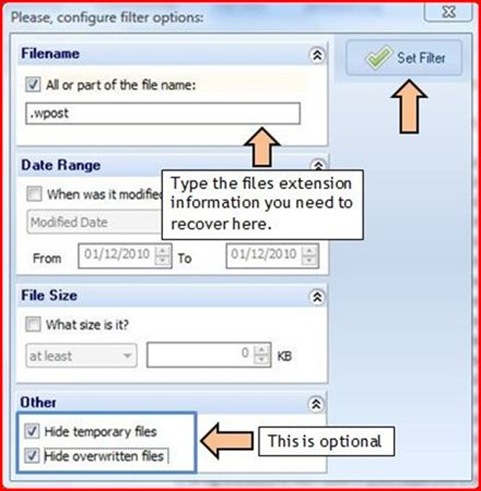
< strong style = " background-color : white ; color: # 3d3d3d ; font-family: Halvetica , Arial , sans-serif; font-size: 13px ; line -height: 20.799999237060547px ; text- align: justify; " > what I love about this software, it < strong style = " background-color : white ; color: # 3d3d3d ; font-family: Halvetica , Arial , sans-serif ; font-size: 13px ; line -height: 20.799999237060547px ; text-align : justify "> has a great feature name < strong style =" background-color : white ; color : # 3d3d3d ; font-family: Halvetica , Arial , sans-serif; font-size: 13px ; line -height: 20.799999237060547px ; text-align : justify "> filter . With this feature < strong style = " background-color : white ; color: # 3d3d3d ; font-family: Halvetica , Arial , sans-serif; font-size: 13px ; line -height: 20.799999237060547px ; text - align : justify "> you can choose the certain type of files you want to recover . To retrieve the files you want, you < strong style = " background-color : white ; color: # 3d3d3d ; font-family: Halvetica , Arial , sans-serif; font-size: 13px ; line -height: 20 , 799999237060547 px ; text-align : justify "> need to know its file extension information

clear = " all " in my case, I need to retrieve all my blog entries I wrote using Windows Live Writer . All entries have the file extension ( . Wpost < / strong> ) . So I have type in the filter options box as below and click the Set Filter button < / strong> .
Clear = "all"
clear = "all" Capture
When all necessary files are displayed, you must select the files you want to retrieve by checking show the right sign sign in the box files . Then click Recover < / strong>
the button . Capture
clear = "all"
clear = "all" Click here to download
clear = "all"

Wednesday, March 12, 2014

Unable to install Adobe CS3 - Internal Error 2739

Have you ever come across the installation error message below in the Adobe Creative Suite 3 Master Collection (Adobe CS3) software
? Unable to install Adobe CS3 - Internal Error 2739
If your answer is YES , so this blog entry is for you . I had this problem in the book of my client with Windows Vista installed
operating system - . > Windows Vista
clear = "all" Software Application -> Adobe Creative Suite 3 Master Collection
< ol style = " background color : white , color: # 3d3d3d ; font-family: Halvetica , Arial , sans-serif; font-size: 13px ; line -height: 20.799999237060547px ; text-align : justify "> Click images - > Type cmd in the Search -> under program list , right click program cmd -> click Run as administrator < / strong> - . > Click Continue < / strong >
clear = "all"
Capture
clear = "all" now you will see the cmd > interface with the directory C : \ \ Windows \ \ System32 >
clear = "all"
Capture
clear = "all" Type regsvr32 jscript.dll -> press Capture . -> click OK button < / strong> when you see below
Capture
clear = "all" once interface cmd program, type regsvr32 vbscript.dll -> press Capture
Capture
clear = "all" < li> Click OK button < / strong> when you see below
. Capture
now you're done . Exit the program </ strong cmd>and try perform the installation of new Adobe CS3 .
clear = "all" < / ol>

What is Blue Screen Of Death In general

I think that many computer users increasingly face the situation where their computer system is suddenly stopped while they use and after a few seconds show the interface looking blue as below. In fact, this is the blue screen of death interface
.
Clear = "all" What is Blue Screen Of Death In general
clear = "all"
the Blue Screen Of Death (BSOD) is an error of judgment displayed by the Microsoft Windows Operating system when it detects a critical error during operation . Usually this critical error can not be recovered by Windows and caused system "crash" and then generate BSOD
.
< ol style = " background-color : white ; color: # 3d3d3d ; font-family: Halvetica , Arial , sans-serif; font-size: 13px ; line -height: 20.799999237060547px ; text-align : justify , " problem> related equipment especially processor and RAM This problem may occur when the size of the RAM on your computer must be shared between the system and the graphics card. But I think this is the rare case because nowadays many graphics cards have their own memory. The other hardware problems that can cause BSOD error is a processor that become overheated. In addition, the failed hard disk can also generate BSOD.
Clear = "all" question of compatibility of device drivers. Sometimes BSOD error may occur after you installed the new device in your computer. Its driver may not be compatible with your computer system that lead to the problem of BSOD. Please check the manufacturer's website if it has all the files updated driver for your new device.
Clear = "all" software compatibility problem . < / Strong > Software incompatibility may generate particular BSOD when producing invalid registry entries during the installation . So please make sure that your new application software is compatible with your computer system prior to purchase and install .
Clear = "all" virus attack. The virus attack can do to make your computer completely unbootable , but can also generate BSOD during boot process. To resolve this problem, you can use . Rescue Disk < / strong> which can be downloaded from the manufacturer's website as
clear = "all" BIOS is outdate . Please consult the manufacturer of your computer website obtain the latest BIOS program </ strong model>. < / ol>
< strong style = "background- color : white; color: # 3d3d3d ; font-family: Halvetica , Arial , sans-serif; font-size: 13px ; line -height: 20.799999237060547px ; text-align : justify "> My experience BSOD
during my eight years of working with the computer, of course I never face this problem can be divided into following events
< ol style = " background-color : white ; color: # 3d3d3d ; font - family: . Halvetica , Arial , sans-serif; font-size: 13px ; line-height : 20.799999237060547px ; text-align : justify "> BSOD error is generated when I am running Windows . It suddenly stop . After a few seconds, show interface BSOD . Finally, restart the computer automatically .
Clear = "all" BSOD error is generated when Windows starts . Sometimes the error caused completely Windows can not load in its environment. In other words , the boot process repeated product < / ol> . That is, I can say about BSOD. If you have something to add, please do not hesitate to leave your comments .

Understanding the BSOD error messages

I hope the previous article will give you an overview of the meaning of BSOD in general . Today I want to show you read the error message BSOD .
understanding of a BSOD error message is very important because it can help you identify the causes of the problem of the computer generate BSOD . In addition, the error message also provide you with the first steps you can take to solve the problem
< ol style = " background-color : white, color : #. 3d3d3d ; font - family: Halvetica , Arial , sans-serif; font-size: 13px ; line -height: 20.799999237060547px ; text-align : justify "> Section Understanding the BSOD error messages indicate name error message. You can click here for more complete list of BSOD error messages . Please be aware , even this list is for the Windows 2000 system, can also be used as a reference for another Windows system that has the problem of BSOD.
Clear = "all" Section Capture will give you the first steps you should take to solve the problem of BSOD . If you read carefully, you will notice that the first step to solve this is to restart your computer < / strong> . If restarting the computer gives no effect , you can follow these steps . I will try to cover more details on these steps in my next article
clear = "all" Section . Capture represent technical information in the form of stop error written in hexadecimal numbers . These figures give management on the type of problem your computer < / strong> . To retrieve the full reference information for the Stop error and its solution , please click . Here < / ol>

clear = "all" Just to let you know
< / strong> Sometimes you may face the error message BSOD "simple" . What I mean is simple it has . TWO < / strong> as below
Capture
in this case, you should refer to the section Capture containing technical information in the form of error written in hexadecimal numbers stop . Click . Here for complete reference information about the Stop error and its solution
another complete list for the BSOD stop error message 0.999 _345_678_999_13 Click here

Get The specifications for information to computers using Belarc Advisor

Information most important should be acquired BEFORE install Windows information computer specifications < / strong> . This information can save time technician when searching the type of device drivers used by computer. Usually , this information is useful AFTER the new features of Windows installed
. Although the technician can use the driver backup software , it is good to save this information additional information . Information on the specifications of your computer < / strong> , you can use free software appointed Belarc Advisor .
It is free software audit personal PC collect complete information on the specification of the computer such that installed and hardware , network inventory , missing Microsoft patches, anti- virus status and benchmarks security < / strong> . What I like about this software, it can display information as HTML file and very easy to read . See below
. Get The specifications for information to computers using Belarc Advisor
clear = "all"
Its installation as simple where you just need a few clicks to install

. Capture
clear = "all" snapshot above are information computer drivers found by the Belarc Advisor software . You can use this information as a reference to find the type of device drivers used by the computer after installing Windows

Tuesday, March 11, 2014

How To Create Disk Partition In Windows Vista

In a simple definition, partition is the small space within the larger space < / strong> . As a parable , we office space that many staff rooms in it . We can assume that office space is the same as the hard disk space and staff rooms within the office space is the same as scores of hard drive
. If your computer has a large hard disk space , it is good partition it data security . This is because , if the Windows file system located in C: \ \ drive is damaged and causes the computer unbootable , data files that you saved in drive D : \ \ remain intact or not lost . clear = "all " />
before procedures / < u>
< / em > How To Create Disk Partition In Windows Vista

< br clear = "all " /> I / procedures < u>
< ol style = " background-color : white ; color: # 3d3d3d ; font-family: Halvetica , Arial , without -serif; font-size: 13px ; line -height: 20.799999237060547px ; text-align : justify "> right click icon on the computer -> click Manage -> click continue
Capture
clear = "all" Then you will see the window computer Management as below
Capture
clear = "all" Double -click disk Management and the center pane computer Management show information volumes disk < / . strong> as below
Capture
clear = "all" now < strong right click> disk volume C: \ \
-> click Shrink Volume ... < / strong> -> then Shrink box as below appears
clear = "all" Capture
clear = "all" base of the photo above, enter the amount of . space to shrink in MB the amount of space
you enter form the second partition on your hard drive (usually called disk volume D: \ \ < / strong> ) . In this case , it is 34500 MB or 33.69 GB < / strong >
clear = "all" Click the Shrink button . -> Wait until the reduction process is < / ol>

clear = "all" After the procedures

clear = "all" Capture
now you 2 disk partitions in your computer and you need to assign a volume for a new disk partition and perform commissioning process on it < / strong> . If you open your computer , you will see disk partitions 2 hard drive as below
Capture
clear = "all"

Monday, March 3, 2014

IDM connection speed

So, now I show you my video on how to speed up the connection of the IDM . But I remind you that the connection speed also depends on your internet connection


Step 1 : Go to IDM . go to Start> All Programs> Internet Download Managers
Step 2: go to download > Options > Connection> "Connection Type ", choose " other "> in the " bps " box you can
choose to put the speed limiter on your own, but I just put 10000000 . set your " default max
connection" choose 16. Click " OK"
Step 3 . go to download > speed limiter > Settings> Set the maximum upload to a file as in step
2. But I just put 10000000 . Then check the " always turn on speed limiters on IDM startup". Click
ok
Step 4 . . Go to download > speed limiter > click on " light "


REMINDER ! . This connection depends on your Internet connection too

< / b>
rating: connecting more default , the fastest on the downloaded file . this is because the file was removed several partition. thus, the partition is easily transferred from large partition
.

. enjoy

Share

Twitter Delicious Facebook Digg Stumbleupon Favorites More